Stop paying for plugins one by one. Update everything automatically — from a single dashboard.
BanglaDock Elements is your all-in-one WordPress updater. Install and auto-update 50,000+ premium GPL plugins and themes with one membership key — and every update is backed up first, so a broken update is always one click away from a rollback.
What is BanglaDock Elements?
BanglaDock Elements is a WordPress plugin that manages updates and installations for premium (paid) plugins and themes through a single membership license from bangladock.net.
Normally, every premium plugin needs its own license key to receive updates. BanglaDock Elements replaces all of those with one key. Once activated, it connects to the BanglaDock library and lets you:
- Update all your installed premium plugins & themes to their latest versions — manually or in bulk.
- Install new products from a catalog of 37,000+ GPL plugins & themes directly in your dashboard.
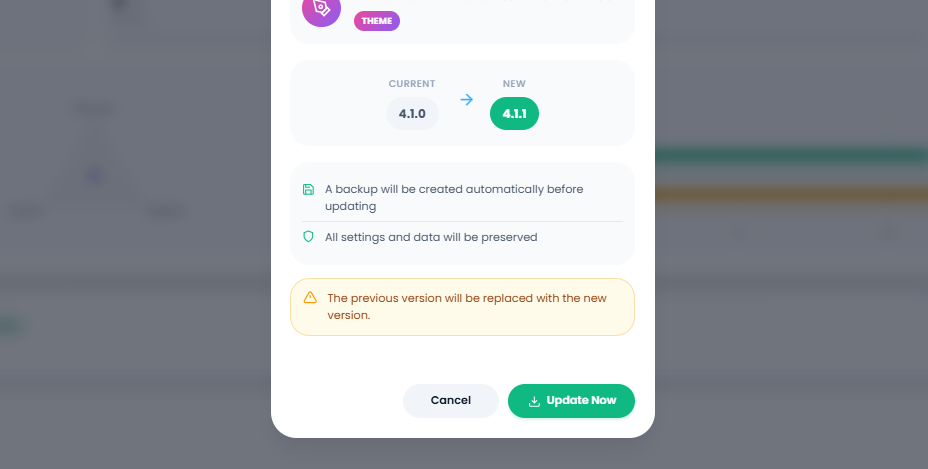
- Back up the working version before each update, with instant one-click rollback support.
- Track everything in a comprehensive action log and check your server's readiness.
The 5 tabs at a glance
Updates Tab
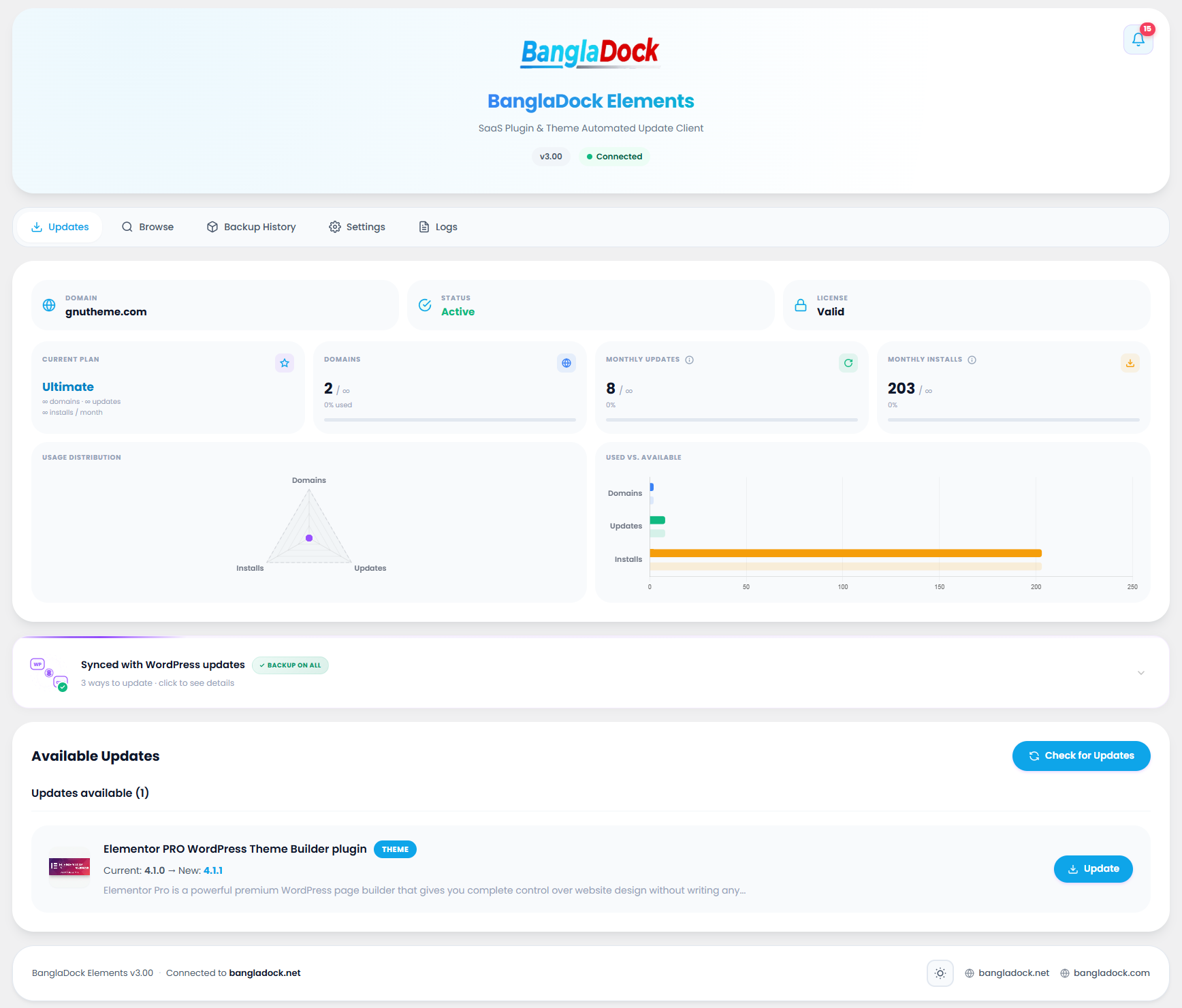
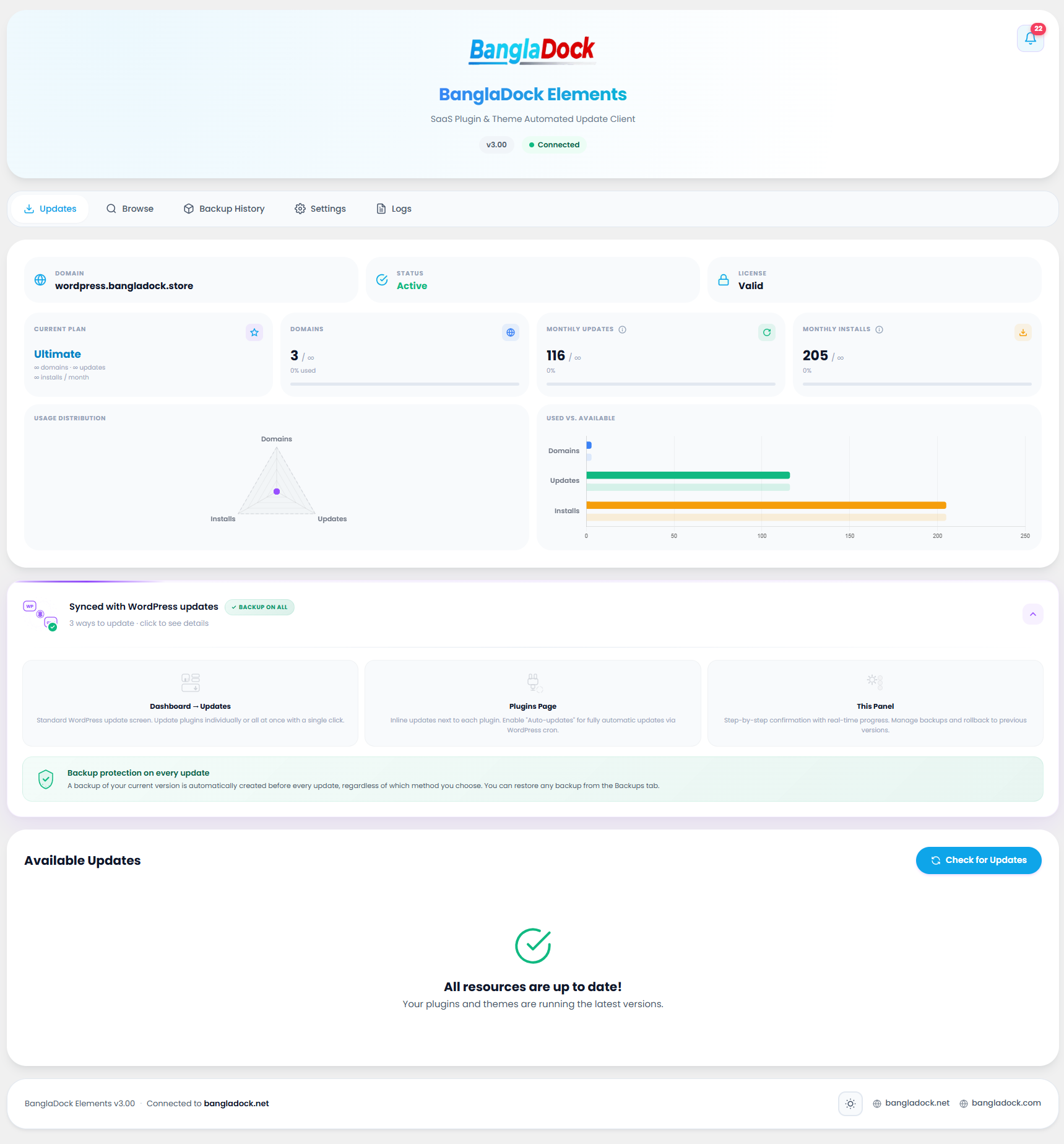
Your welcome base — domain info, connection status, membership details, and the updates list panel.
Browse Tab
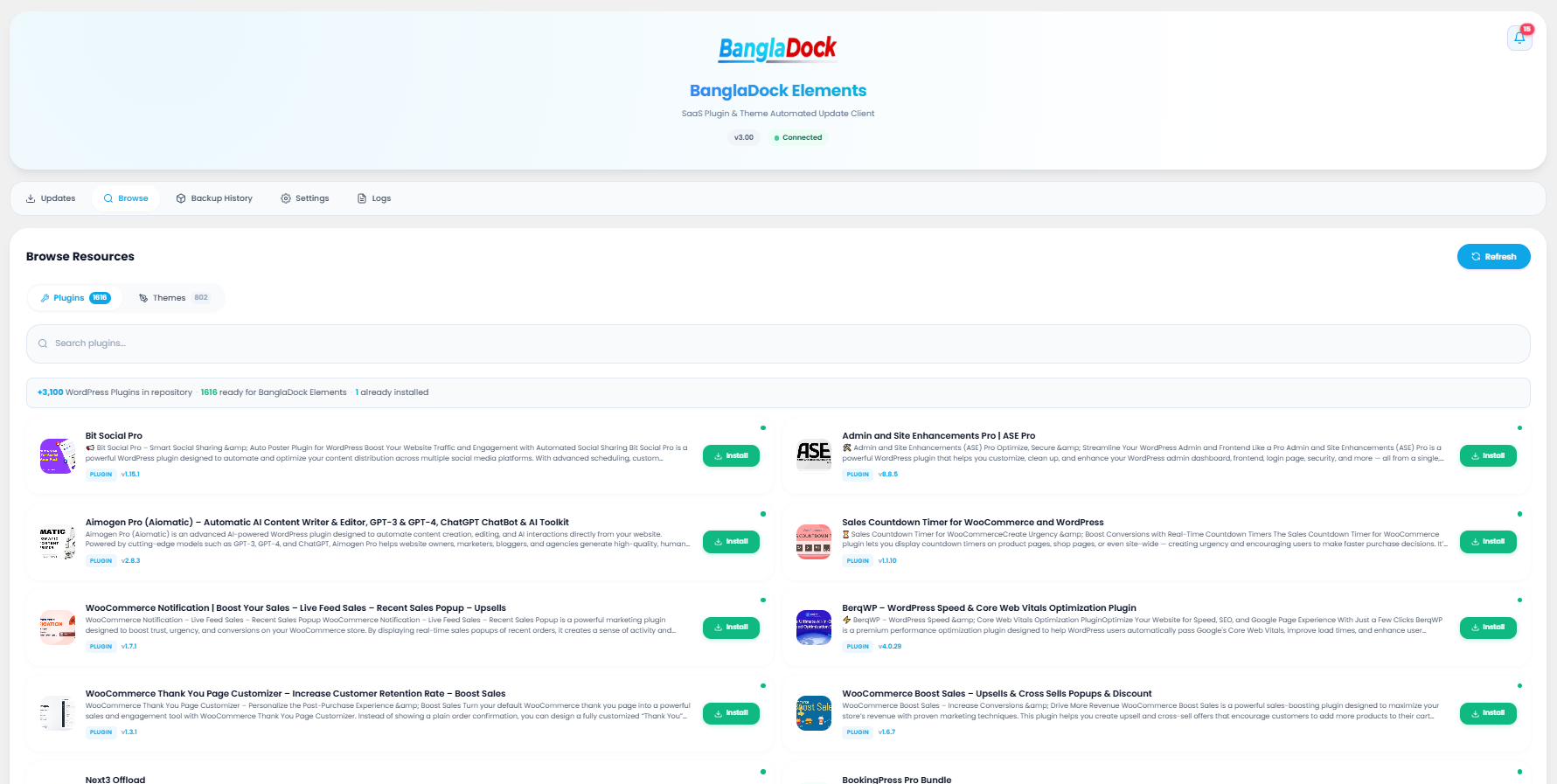
Search and install resources from the catalog of 37,000+ plugins & themes without leaving WP.
Backups Tab
Pre-update backup zip archive history, ready to restore/rollback in one click.
Logs Tab
A full audit log containing timestamps, levels (info/warning/error), and specific update details.
Settings Tab
Manage API key connection, exclude resources, view statistics charts, and configure roles or users permissions access.
Who it's for
If you build or maintain WordPress sites and use premium plugins or themes, this plugin saves you money and time.
Site owners
Run a blog or business site and want premium tools without paying for each one separately.
Developers & freelancers
Build client sites with the best premium plugins and keep them all updated from one place.
Agencies
Manage many client sites, with white-label branding to resell updates under your own name.
Requirements
BanglaDock Elements runs inside your normal WordPress admin. Make sure your server meets these minimums for updates to install reliably.
| Requirement | Minimum | Recommended | Why it matters |
|---|---|---|---|
| WordPress | 6.0 | 6.4 or newer | Update & install APIs the plugin relies on. |
| PHP | 8.0 | 8.2+ | Required to unzip and write plugin/theme files. |
| PHP memory limit | 256 MB | 512 MB | Large themes need memory while extracting. |
| Max execution time | 60 s | 300 s | Prevents timeouts during big updates. |
| ZipArchive (PHP) | Enabled | Enabled | Used to unpack downloaded .zip packages. |
| HTTPS / SSL | Enabled | Enabled | Secure connection to the BanglaDock update server. |
| Writable folders | /wp-content/ | — | Plugins, themes & backups are written here. |
Installing the plugin
Installation is the same as any WordPress plugin — upload the ZIP, activate, then enter your license. Here's the full flow.
Download the plugin ZIP
Members can download the latest bangladock-automatic-update.zip from the product page: bangladock.net/product/bangladock-automatic-update. Log in with your membership account first.
Upload it to WordPress
In your WordPress admin, go to Plugins → Add New → Upload Plugin, choose the ZIP, and click Install Now.
Activate the plugin
Click Activate Plugin. A new menu item — BanglaDock Elements — appears in your admin sidebar.
Run the setup wizard
The first time you open it, a setup wizard launches automatically and walks you through activation. See the next section for details. A license key is required before you can use the plugin.
upload_max_filesize in your hosting settings, or upload the folder via FTP to /wp-content/plugins/.Activating your license
A valid license key is required — the plugin will not manage updates until it's activated. The setup wizard makes this a 60-second process.
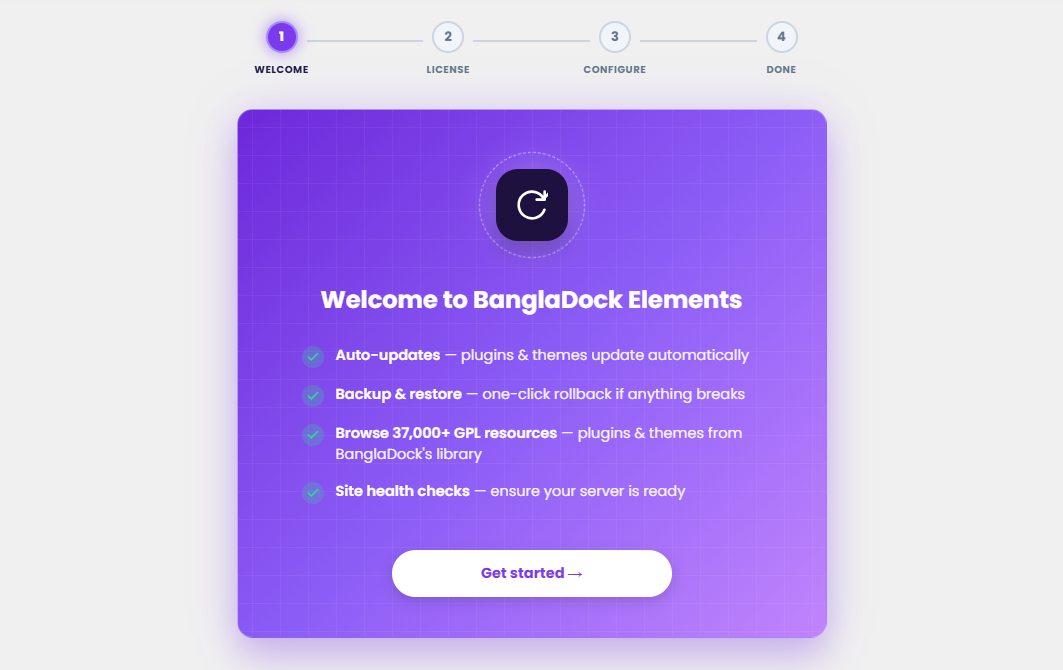
Step 1 — Welcome screen
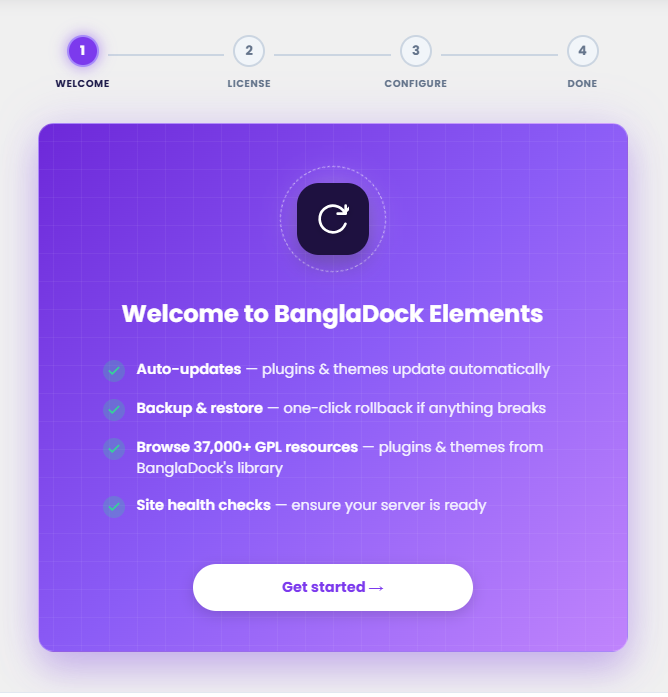
When the plugin first loads, you'll see a premium welcome screen introducing the core capabilities of BanglaDock Elements. Click Get started to continue.
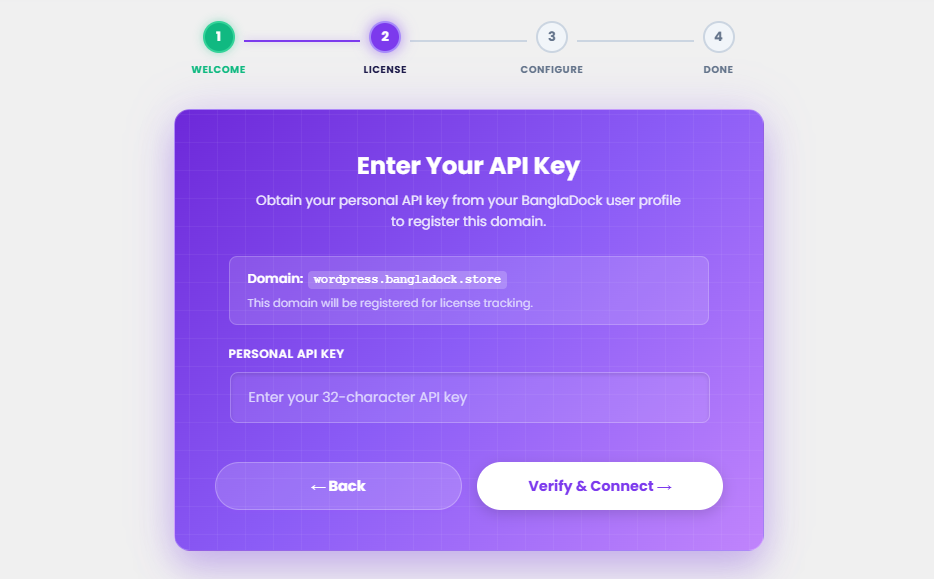
Step 2 — Paste your API key
Enter your personal license API key in the connection input field. The wizard displays your current domain to verify that it is registered correctly. Clicking Verify & Connect will authenticate your site and link it to your membership.
Step 3 — Server Readiness Diagnostics
The wizard automatically runs server checks to ensure WordPress is ready. It validates your PHP version, WordPress version, active ZipArchive extension, memory allocations, and backups directory write access.
Step 4 — Setup Complete
Once all diagnostics pass and the key is connected, you'll see the Success screen. Click the Go to Dashboard button to reload and open the updates dashboard.
Dashboard Status
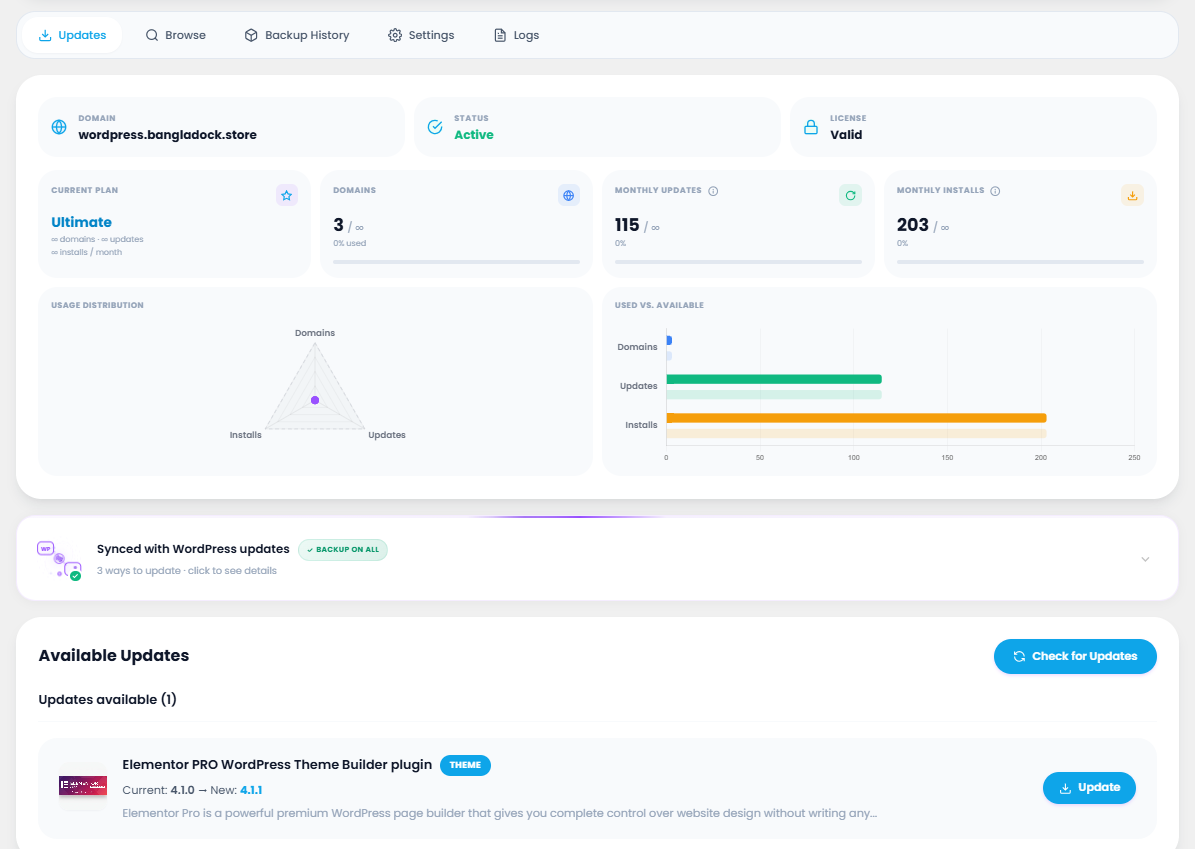
The dashboard connection status bar is located at the top of the Updates tab. It gives you a quick snapshot of your site registration, API connection, plan details, and updates usage.
| Element | What it does |
|---|---|
| Domain Registration | Lists your domain name registered with BanglaDock for licensing support. |
| Connection Badge | Shows a green Connected status badge confirming connection to the updates server. |
| Active Membership | Displays your active plan name (e.g. Ultra, Ultimate) and expiry date. |
| Download limits | A usage counter showing how many updates you have consumed this month out of your plan limits. |
Updates List Panel
The Updates panel is located at the bottom of the Updates tab. It lists all premium plugins and themes currently installed on your site that have a newer version available on the server.
Toolbar & actions
| Control | What it does |
|---|---|
| Check Updates | Asks the BanglaDock server whether any product has a newer version available. |
| Bulk Update | Select multiple resources and click **Update Selected** to run updates in bulk. |
| Individual Update | Click the **Update** button on a specific plugin or theme row to update it individually. |
Browse & Install
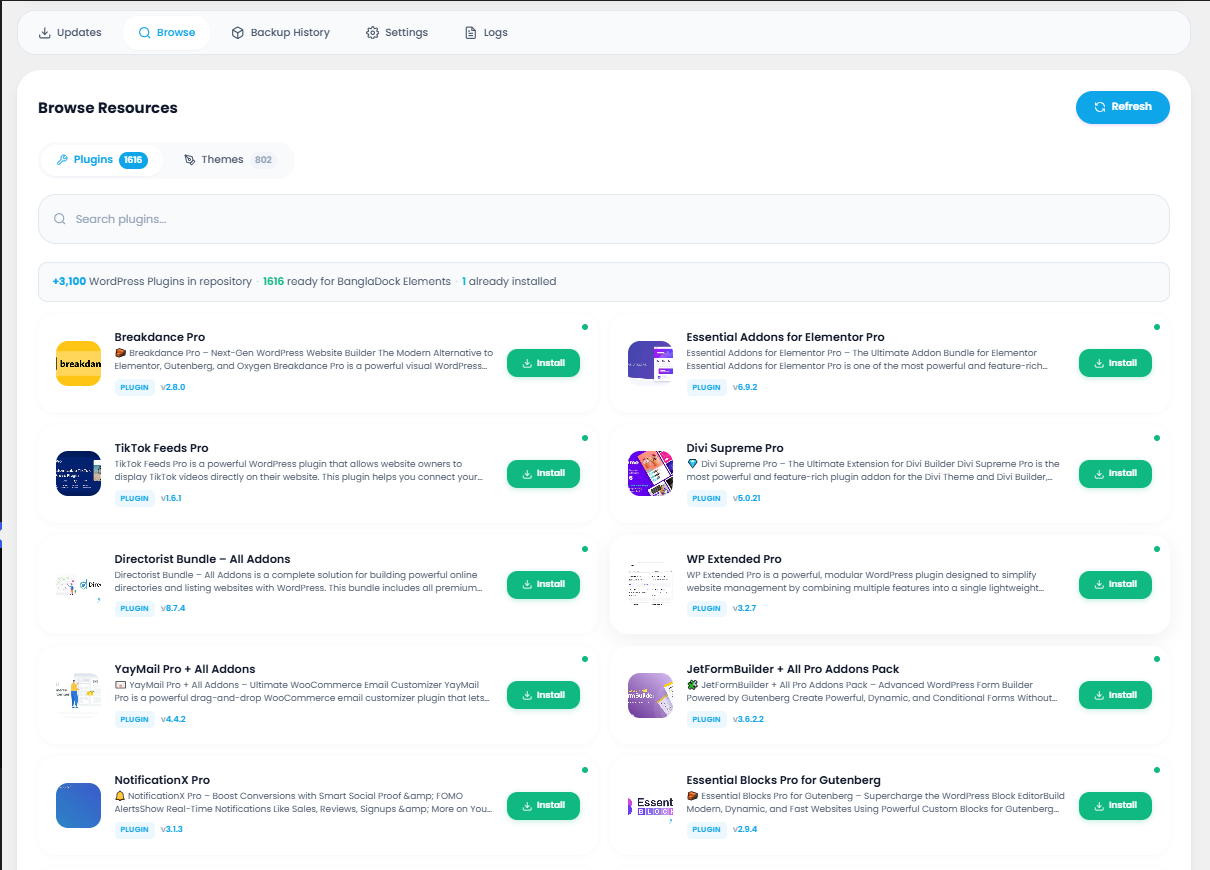
Discover and install new premium plugins & themes from the BanglaDock library — over 37,000 products — without leaving WordPress.
| Element | What it does |
|---|---|
| Plugins/Themes subtabs | Switch between browsing plugins and themes. |
| Search bar | Live search the BanglaDock library of over 37,000 products. |
| Install button | Downloads and installs the product to your site directly. Shows "Installed" once finished. |
Backup History
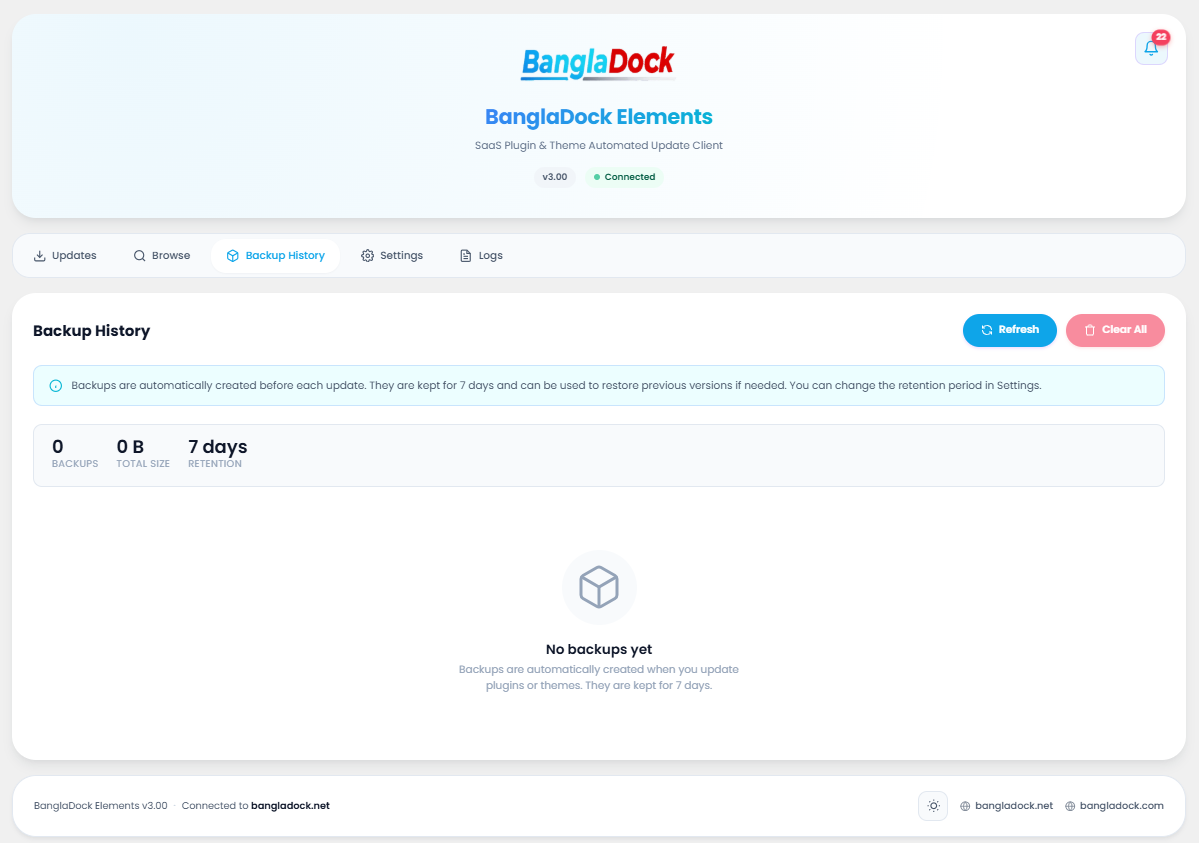
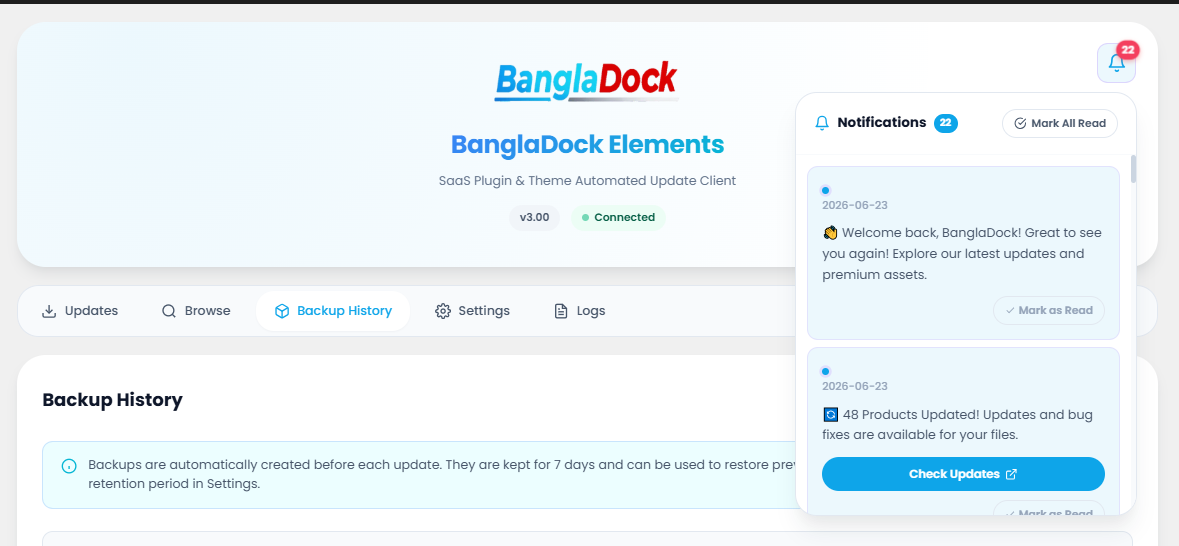
This page allows you to view and manage automatic backups created before each update. Backups are stored as ZIP files and can be used to roll back/restore previous working versions if an update fails.
| Action / Control | What it does |
|---|---|
| Refresh | Scans the backup directory and reloads the restore points list. |
| Clear All | Permanently deletes all saved backup archives to free up server disk space. |
| Restore Point Details | Displays the resource name, file size, creation timestamp, and days left before automatic pruning. |
| Restore Action | Restores the specific resource back to the saved version. |
| Delete Action | Deletes a specific backup ZIP archive permanently. |
Update Logs
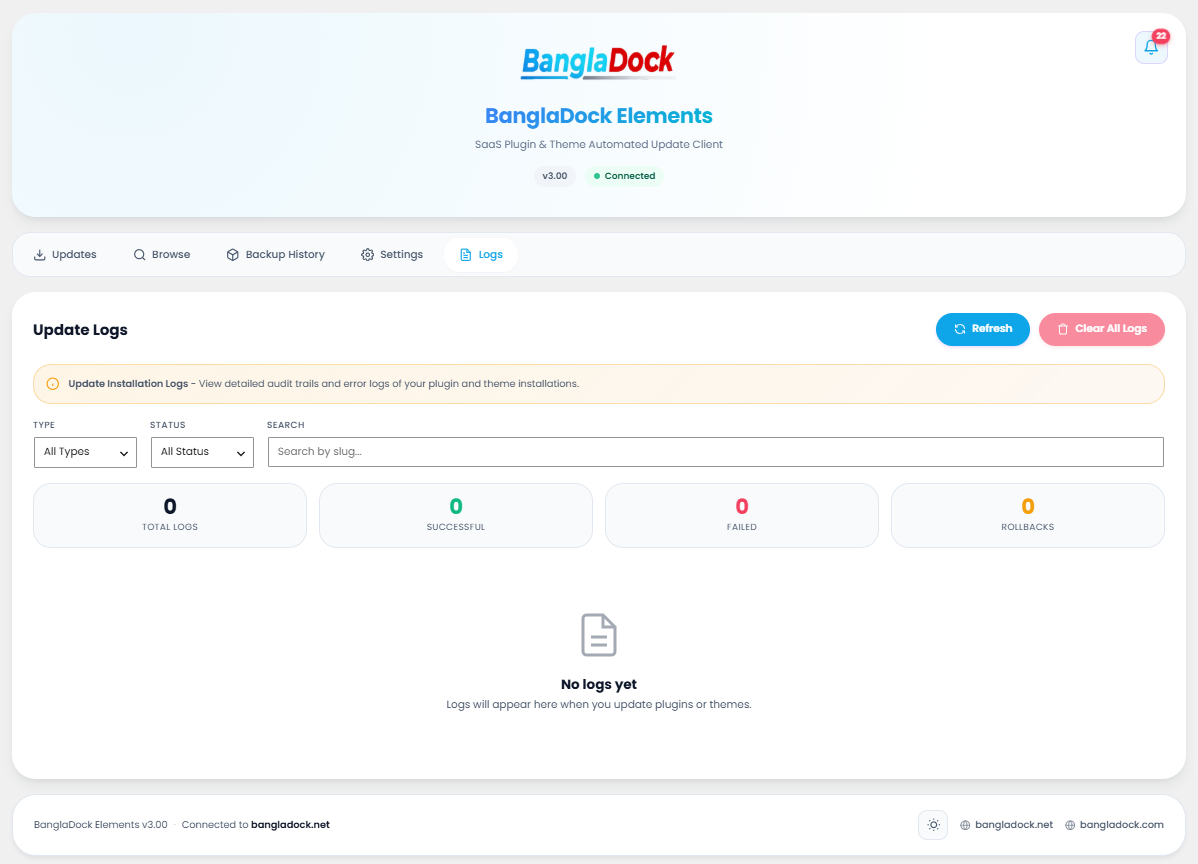
A complete audit log tracker showing every update, installation, backup, and restore. Track exactly what happened on your site, when, and what status was returned.
| Log Field | What it tells you |
|---|---|
| Level | Log severity level: INFO for standard events, WARNING, or ERROR. |
| Timestamp | Date and time the event was recorded. |
| Message | A detailed description of the action performed (e.g., product successfully updated, backup created, etc.). |
Plugin Settings
Control exactly how the plugin behaves. Settings are grouped into four sub-tabs located down the left side. Here's a quick reference, then every tab in detail with its screenshot.
| Settings Tab | What you configure |
|---|---|
| General | Registered domain info, API Key verified changes, backup retention limits, and manual site health diagnostics checks. |
| Exclusions | Search and select specific plugins or themes to exclude them from automatic update detection checks. |
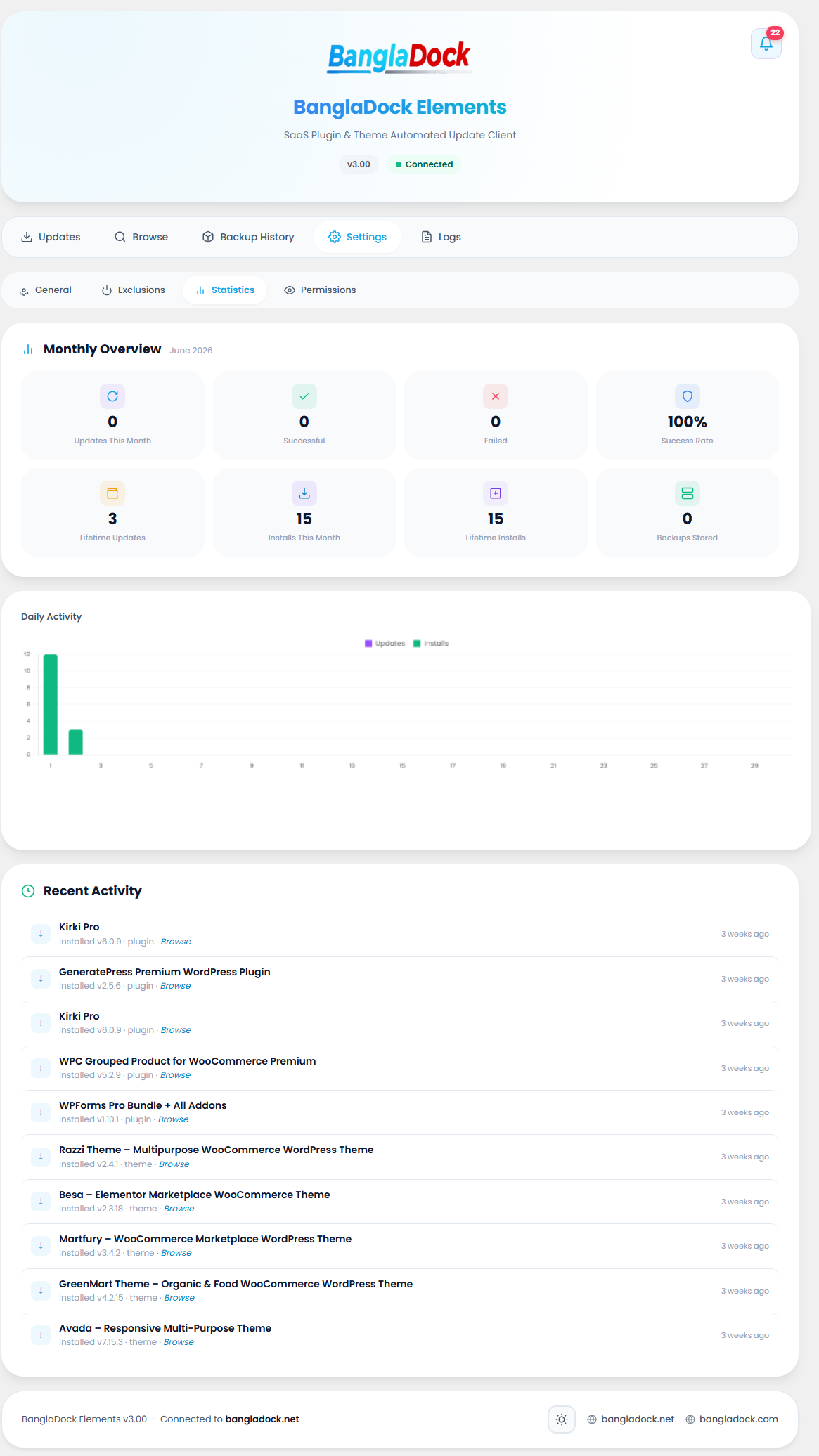
| Statistics | Visualize monthly update history counts, download trends, and charts mapping resource updates. |
| Permissions | Set access controls (Modes: All Admins, Roles, or Users) to manage who can access the menu, view specific tabs, or see dashboard cards. |
1 · General Settings
Manage the **API Key** credentials, see the registered domain name, and configure the **Backup Retention** settings (options for 7, 14, 30, or 60 days). Additionally, it hosts the manual **Run Health Check** button to execute diagnostic checks on the server.
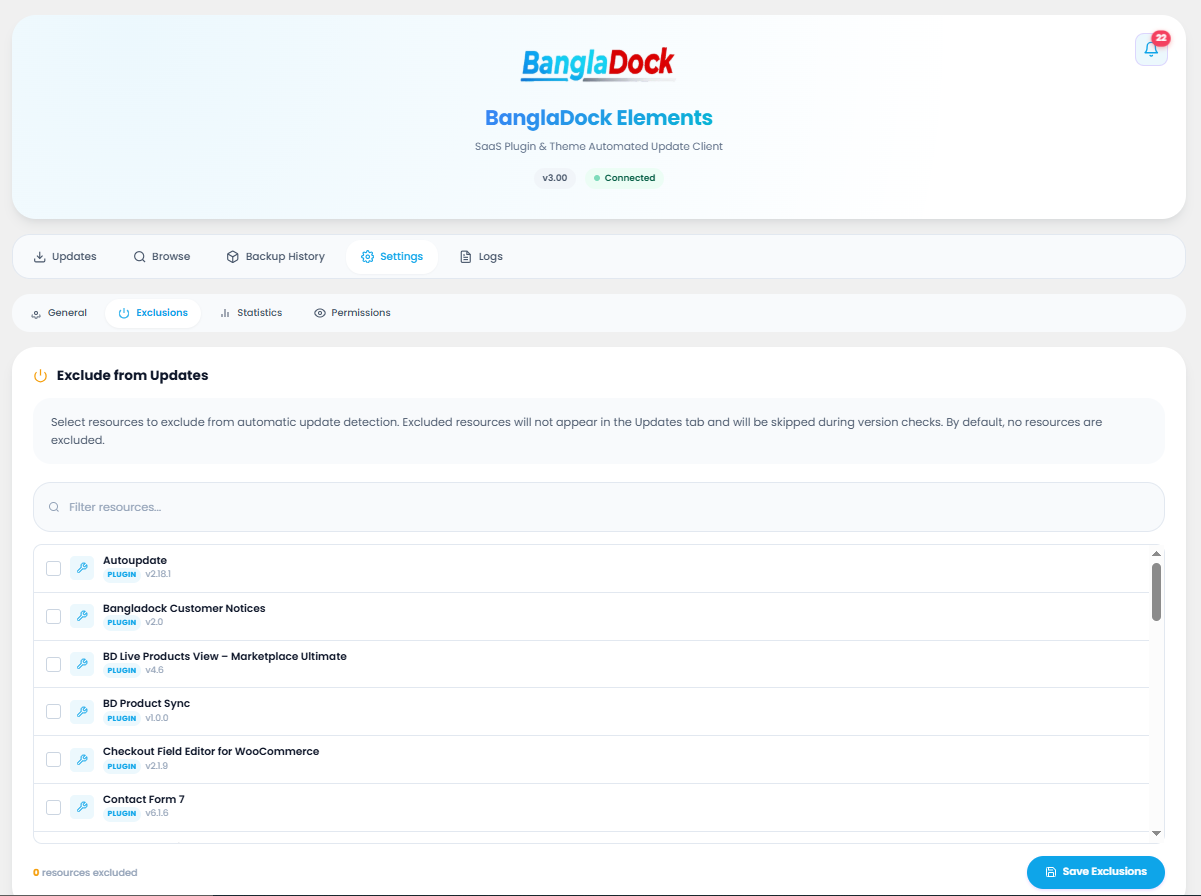
2 · Exclusions settings
Search and manage resources you want to exclude. Excluded plugins or themes will not show up in the Updates tab and will ignore automatic update check requests, allowing you to manually freeze specific products.
3 · Statistics settings
Provides a visual representation of updates consumed monthly. Displays tiles for total updates executed, success rate percentage, and contains a ChartJS graph showing resource download trends over time.
4 · Visibility & Permissions (Agency Controls)
Built for **agencies** reselling sites to clients. Choose who has access to the BanglaDock menu (All Admins, Roles, or Users). You can check/uncheck to hide specific tabs (Updates, Browse, Backups, Settings) or specific dashboard elements (Connection Status Bar, Membership Info Card) so clients never see licensing details.
Restrict by Role & User
Switching the mode to Roles or Users opens input forms where you can search and select specific WordPress user roles or user logins. Only matching users will see the elements you checked in the tabs permissions checklist.
Restricted Access View
When a client logged in under a restricted user/role views the plugin page, only the permitted tabs are rendered. All traces of connection status and settings keys are hidden, keeping the delivery infrastructure white-labeled.
License Management
Manage your membership key, see your plan and expiry, and re-activate on a new domain within the General Settings panel.
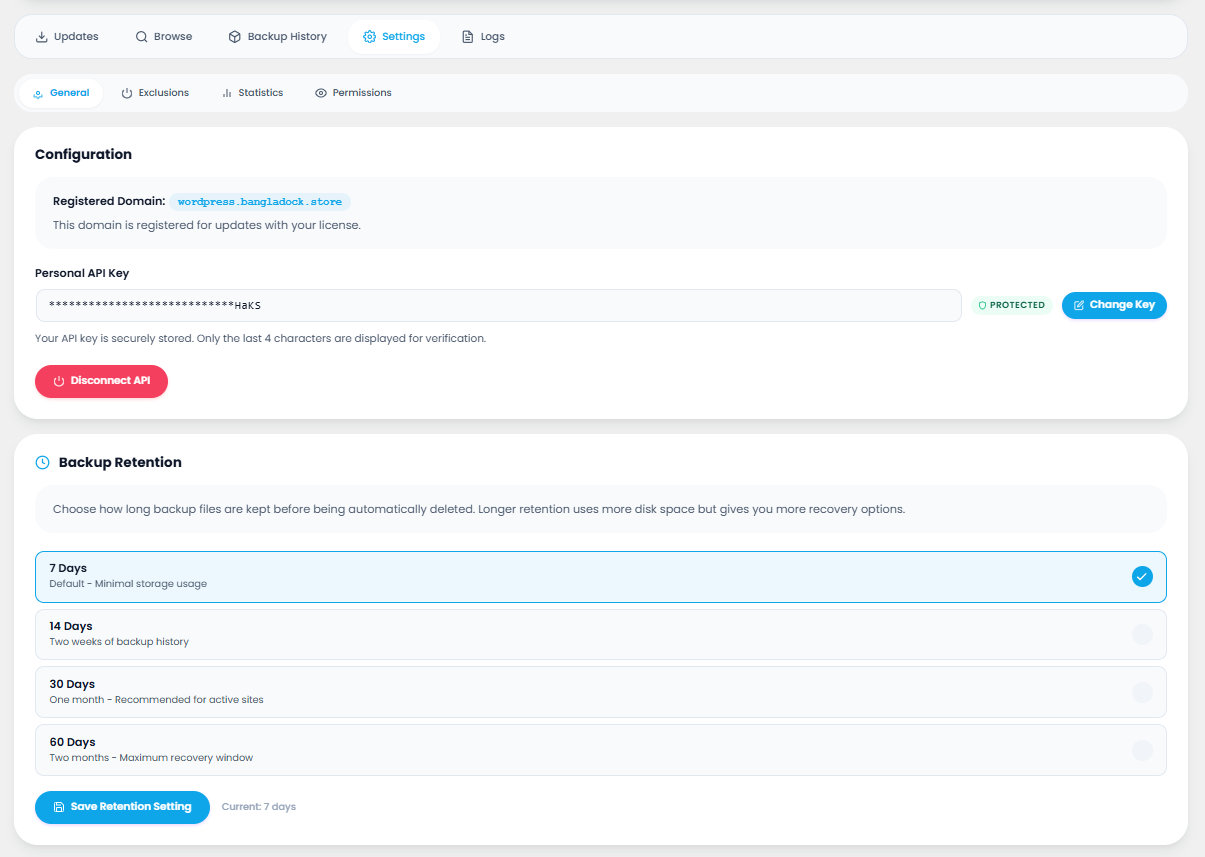
| Element | What it does |
|---|---|
| API Key display | Your connected key, masked by default for security. |
| Change Key Button | Allows you to disconnect the current key and enter a new one. |
| Registered Domain | Displays the active domain registered to receive updates under this license key. |
Site Health Check
A diagnostic checker that ensures your server meets the requirements to install and update products reliably. It runs automatically in the setup wizard and can be run manually in settings.
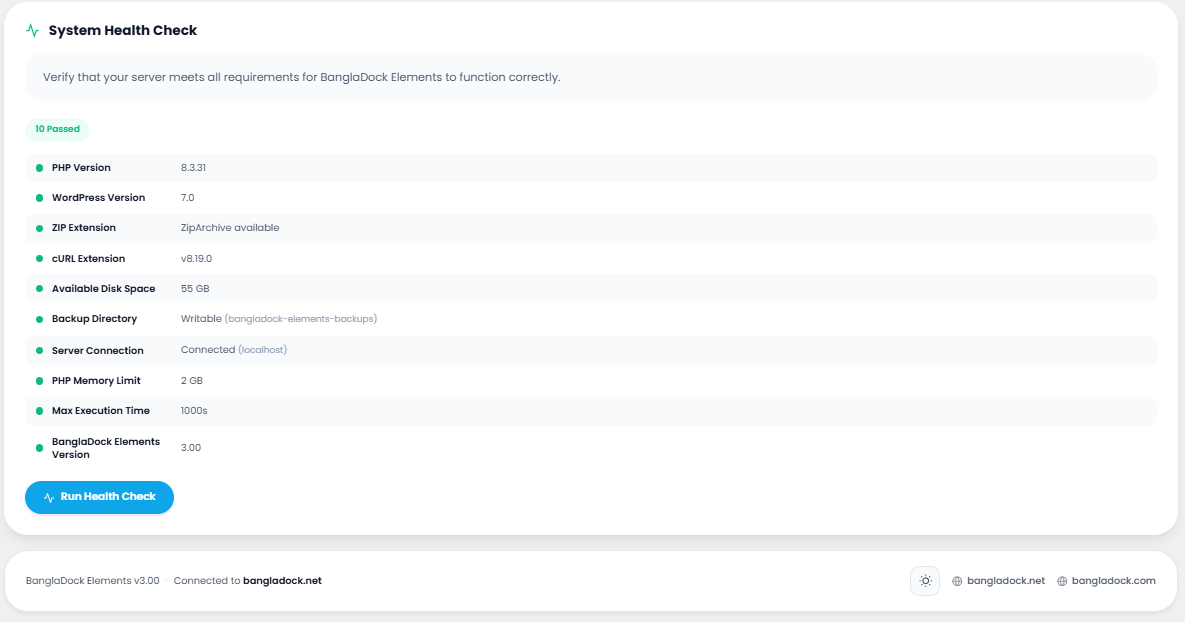
| Diagnostic Item | What it verifies |
|---|---|
| PHP Version | Verifies PHP is v7.4 or higher. |
| WordPress Version | Verifies WordPress is v5.8 or higher. |
| ZIP Extension | Ensures ZipArchive PHP module is enabled for extracting packages. |
| Memory Limit | Ensures sufficient PHP memory is allocated for downloads. |
| Backup Directory | Ensures the backups directory exists and is fully writable. |
Messages & alerts
The plugin gives instant feedback with small pop-up "toast" messages in the top-right corner. Here's what each colour means and when you'll see it.
What triggers each message
| Action you take | Message you'll see |
|---|---|
| Click Update on a product | Success "Update successful" once it finishes — or Error with the reason if it fails. |
| Click Update all | A confirmation dialog lists every product to be updated, then a success toast per product. |
| Toggle auto-update | Success "Auto-update enabled/disabled" for that product. |
| Click Restore a backup | A confirmation dialog (with "back up current version first" option), then Success "Restore complete". |
| Click Delete a backup / Clear log | A red confirmation dialog — the action only runs after you confirm. |
| Reach your daily download limit | A modal explains the limit and when it resets. |
| Enter an invalid license key | The field shows an inline error and shakes; the Activate button stays disabled. |
| Test Connection (Settings/Health) | Success "Connected · 142ms" or an Error if the server can't be reached. |
Keyboard shortcuts
Power users can fly through the plugin without the mouse.
Frequently asked questions
Do I need a separate license for each plugin?
Where do I get my license key?
BD-XXXX-XXXX-XXXX.What happens if an update breaks my site?
Will the plugin work without activating a license?
What is the daily download limit?
Can I move my license to a new domain?
Is this legal? What is GPL?
One key. Every premium plugin. Always up to date.
Stop juggling dozens of license keys and manual updates. Install BanglaDock Elements, activate once, and let your whole site stay current — safely, automatically, with one-click rollback whenever you need it.